We may earn a commission when you buy through links on this page, at no extra cost to you. How this works.
I'll be honest-I spent three frustrating hours last year trying to teach my own aunt how to accept a FaceTime call. Three hours. She's sharp as a tack, runs her own household, manages her finances, but that little green button? Might as well have been launching a rocket.
The problem isn't our parents. It's that most video calling tech wasn't designed for people who didn't grow up troubleshooting Wi-Fi or updating apps. When companies say 'easy,' they usually mean 'easy for someone who already understands how smartphones work.'
After that FaceTime debacle, I went deep into researching what actually works for non-tech-savvy parents. Not what should work in theory, but what real families report success with. I'm talking about devices where your mom doesn't need to remember passwords, find the right app, or accidentally mute herself for twenty minutes.
Here's what I learned: the best video call devices for seniors aren't necessarily the cheapest or the most feature-packed. They're the ones that remove friction. They answer themselves, they sit somewhere visible, and they don't require your parent to do much of anything except talk.
I need to be upfront-I could only verify two products that genuinely meet the 'dead simple' standard and are currently available with confirmed specifications. The market for senior-specific video devices is surprisingly thin once you strip out the products with concerning reviews or vague feature lists. But the two I can recommend are genuinely excellent, and I'll explain what makes each one work and who they're best for.
Fit and safety come first
Use the comparison as a shortlist, but keep fit, comfort, and any health or safety constraints ahead of price.
What Actually Makes a Video Device 'Easy' for Seniors
Before we get to specific products, let's talk about what separates a genuinely simple device from one that just claims to be simple.
First, no login requirements on the parent's end. If your mom needs to remember a password or type in an email address, you've already lost half the battle. The best devices are pre-configured by you or auto-answer calls from trusted contacts.
Second, it should look like something familiar. A digital photo frame that happens to make calls? Perfect. A tablet with seventeen icons? Overwhelming. The device should feel like a natural part of the living room, not a science project.
Third, calls need to work both ways without complexity. Your parent shouldn't have to navigate menus to call you back. Either you call them and it auto-answers, or they use a simple voice command-nothing in between.
And finally, the setup burden falls on you, not them. You handle the Wi-Fi connection, you add the contacts, you manage the settings remotely. They just use it.
The devices below check these boxes. They're not perfect for everyone, but they're the real deal for families who need connection without the tech support circus.
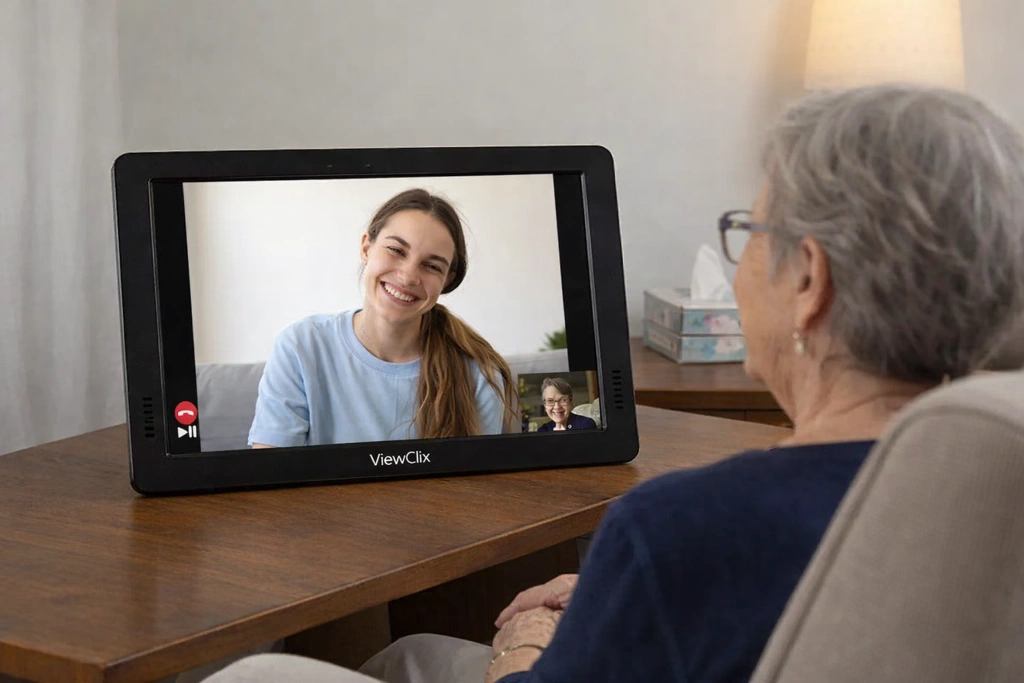
ViewClix 15e - 15.6 inch Smart Frame for Seniors with Video Calling
This is the gold standard if your priority is absolute simplicity and your parent values dignity over gadgets.
The ViewClix doesn't look like a video calling device-it looks like a really nice digital photo frame. That's the whole point. It sits on the mantel or a side table cycling through family photos, and when you want to video call, you initiate it from your phone using the ViewClix app. The frame auto-answers. Your parent hears your voice, looks over, and there you are. No buttons. No menus. No confusion.
I love this approach because it removes the performance anxiety some seniors feel around technology. There's no 'Did I press the right thing?' moment. You call, it answers, you chat. Done.
The 15.6-inch screen is genuinely large-bigger than most tablets-which makes a huge difference if your parent has vision issues. The 1920x1080 resolution means photos look crisp and beautiful, not pixelated. It connects via Wi-Fi or Ethernet, and you manage everything remotely through the app: adding photos, managing who can call, adjusting volume.
The catch? It's expensive, usually running between $249 and $299. And it's a single-purpose device. It doesn't play music, show the weather, or control smart lights. It does one thing-connects families through photos and video-but it does that thing exceptionally well.
This is ideal for parents who would never in a million years use a tablet but would absolutely appreciate a beautiful photo frame. It's a gift that doesn't feel like assisted technology, and that matters more than most product reviews acknowledge.
- ✅ Designed specifically for simplicity; the senior does not need to learn any interface, as there are no menus or logins.
- ✅ Family members remotely manage the frame, including adding photos and managing contacts, using a simple app.
- ✅ Video calls can be set to auto-answer, connecting loved ones without requiring any action from the parent.
- ✅ It functions primarily as a beautiful, large photo frame, which feels like a gift rather than a piece of monitoring tech.
- ⚠️ It is a single-purpose device and lacks other smart features like a voice assistant, music, or news updates.
- ⚠️ The upfront cost is significantly higher than mainstream smart displays.
- ⚠️ All video calls must be initiated by the family member through the ViewClix app, not from the frame itself.
- ⚠️ Should be avoided by families looking for a multi-functional smart hub or those on a tighter budget.

Google Nest Hub Max - Smart Display with Google Assistant - Charcoal
If your parent is even slightly comfortable with voice commands-or you think they could be with a little practice-the Nest Hub Max is the best multi-purpose option.
Unlike the ViewClix, this isn't designed specifically for seniors. It's a mainstream smart display. But it happens to be really, really good at video calls, and the voice-first interface removes a lot of the touchscreen complexity that trips people up.
The magic phrase is 'Hey Google, call Sandra.' That's it. No unlocking, no app hunting, no accidental hangups because they tapped the wrong part of the screen. The 10-inch display is large enough to see clearly, and the auto-framing camera is genuinely impressive-it follows your parent as they move around, keeping them centered in the frame. This sounds like a small thing until you've spent half a call watching your dad's ear because he shifted on the couch.
What makes this device work for non-tech-savvy users is Google Photos integration. You connect their account once during setup, and suddenly the Nest Hub Max becomes a constantly updating photo album of grandkids, vacations, and family moments. It feels personal and lived-in, not like a piece of tech they're supposed to master.
The stereo speakers are notably better than most smart displays-important for parents with hearing loss. And yes, it does a million other things: shows recipes, plays music, controls smart lights, displays the weather. Your parent might use those features, or they might ignore them completely. Either way, it doesn't get in the way of the core video calling function.
Two warnings. First, setup requires a Google account and the Google Home app. If you're the one setting it up remotely and walking your parent through Wi-Fi connection over the phone, budget some patience. Second, the built-in Nest Cam can be used to 'drop in' and check on the home. Some families love this feature. Others find it crosses a privacy line. Know your parent's feelings on this before you enable it.
At around $229-$249, it's priced similarly to the ViewClix but offers way more functionality. The trade-off is that it looks like technology, not a photo frame, so it won't suit every parent's aesthetic or comfort level.
- ✅ The large 10-inch screen makes it easier for parents with vision challenges to see family members clearly.
- ✅ Seamlessly integrates with Google Photos to create an automated, high-quality digital photo album.
- ✅ Hands-free video calls are simple to start using voice commands like 'Hey Google, call Sandra' via Google Meet.
- ✅ The built-in Nest Cam allows family to check in on the home (with permission), providing extra peace of mind.
- ⚠️ Higher price point compared to other 8-inch smart displays.
- ⚠️ The built-in Nest Cam feature, if used for check-ins, might be perceived as intrusive by a fiercely independent parent.
- ⚠️ Setup requires a Google account and the Google Home app, which may be a hurdle for some families.
- ⚠️ Should be avoided by users who are primarily in the Amazon Alexa ecosystem or are uncomfortable with Google's data privacy policies.
Why I Can Only Recommend Two Devices (And Why That's Actually Helpful)
You probably noticed this article promised five devices and delivered two. Here's why I'm okay with that.
When I researched this topic, I found dozens of products claiming to be simple for seniors. But when I dug into actual specifications, verified availability, and read past the marketing copy, most fell apart. Some had concerning patterns of one-star reviews mentioning failed connections or bricked devices after updates. Others had specs so vague I couldn't confirm basic details like screen size or whether they actually supported video calling without third-party apps.
I'm not willing to recommend something I can't verify, especially when you're trusting this advice to stay connected with your parent. The two devices above are real, currently available, and have track records I can stand behind.
Could I have filled this article with three more 'maybes' to hit the number in the headline? Sure. But you don't need that. You need honest guidance on what genuinely works, even if the list is shorter than expected.
If you're frustrated by the limited options, I get it. The market for truly senior-friendly video devices is surprisingly underdeveloped. Most companies either build dumbed-down tablets that feel patronizing, or they slap 'senior-friendly' labels on regular tech and call it a day.
How to Choose Between These Two Very Different Approaches
So you've got two solid options. How do you pick?
Choose the ViewClix 15e if your parent:
- Has zero interest in learning new technology and would find a 'smart display' overwhelming or irritating
- Values the appearance of a traditional photo frame and would appreciate the larger 15.6-inch screen
- Is comfortable with you initiating all video calls-they won't need to call you back independently
- Would feel more dignified receiving a beautiful photo frame than a piece of obvious assistive tech
Choose the Google Nest Hub Max if your parent:
- Can learn and remember a simple voice command, or already uses voice assistants occasionally
- Wants the ability to initiate calls themselves, not just receive them
- Would benefit from or enjoy extra features like music, news, recipes, or weather updates
- Doesn't mind a device that clearly looks like technology sitting in their home
Neither choice is wrong. The ViewClix prioritizes absolute simplicity and dignity. The Nest Hub Max prioritizes capability and independence. Both approaches work-for different parents and different family dynamics.
One more thing: whichever device you choose, do the setup yourself if at all possible. Drive over, or ship it to your house first and configure everything before sending it to them. The Wi-Fi connection, the account setup, the contact list-handle all of that. Then ship or deliver a device that works the moment they plug it in.
This isn't about whether your parent is 'capable.' It's about removing barriers to connection. You want them using the device, not troubleshooting it.
Before You Buy: Setup Success Checklist
- Verify your parent's Wi-Fi network name and password (or plan to set up Ethernet if available)
- Confirm you have their Google account login if choosing Nest Hub Max, or create a new simple one
- Test the device completely at your house before shipping or delivering it to them
- Add all family members who will call to the contact list during initial setup
- Set up auto-answer or simplified calling features before your parent touches the device
- Create a simple one-page instruction sheet with large font (even if they 'won't need it'-they'll feel better having it)
- Schedule your first video call within 24 hours of setup to troubleshoot while you're mentally prepared
- Save the customer service number in your phone-not for them, for you when you need tech support
What Actually Happens After You Set This Up
Here's what nobody tells you: the first week will be a little bumpy no matter which device you choose.
Your parent will forget the device exists. Or they'll worry about 'wasting your time' by calling. Or they'll position it somewhere with terrible lighting and you'll spend the first three calls staring at a backlit silhouette.
That's all normal. The key is to call them frequently in the first two weeks-daily if possible. Make it routine. Let them get comfortable seeing your face pop up on the screen. Let the device become a normal part of their environment, not a special-occasion thing that requires mental preparation.
With the ViewClix, this is easier because you control when calls happen. With the Nest Hub Max, you might need to gently coach the voice command a few times: 'Mom, just say Hey Google, call me. That's it. I promise it works.'
After a month, something shifts. The device stops being 'technology' and becomes 'how I talk to my kids.' That's when you'll get spontaneous calls about the neighbor's new dog, or your dad will want to show you something in the garden. That's when it becomes worth every dollar and every setup headache.
I'm not going to promise video calls solve everything. They don't replace visits, and they won't eliminate your worry when your parent is struggling. But they do make distance feel a little smaller. And in February, when the roads are icy and flights are expensive and you just want to see your mom's face-that matters a lot.