We may earn a commission when you buy through links on this page, at no extra cost to you. How this works.
Elderly Monitor with Pan-Tilt-Zoom, 2-Way Talk, Call Button, Med Reminder, Temp & Night Vision
One-touch video calling devices that remove the tech barrier for elderly parents.
Fit and safety come first
Use the comparison as a shortlist, but keep fit, comfort, and any health or safety constraints ahead of price.
When your parent refuses to touch a smartphone, video calls feel impossible. They see icons, updates, passwords, and apps - then walk away. You troubleshoot over the phone, they forget by next week, and everyone gives up. The gap isn't stubbornness; it's that consumer tablets and phones were built for daily learners, not occasional callers who want a kitchen appliance, not a computer.
Dedicated video calling devices exist to close that gap. They sit on a counter, power on automatically, and ring like a landline. No app stores. No operating system pop-ups. No hunt for the video button mid-call. This guide compares four device categories that strip complexity down to the core task: seeing and talking to family without requiring your parent to become tech-literate.
We evaluate each option on three decision points that matter most when the user resists learning: call simplicity - how many taps or words it takes to start a video call; screen usability - whether the display size, brightness, and interface suit aging vision and motor control; and setup burden - how much configuration you must complete before handing the device over. Some options require your parent to do nothing but answer; others demand a voice command or a single tap. Some ship ready; others need app logins and network troubleshooting.
The right choice depends on whether your parent will tolerate any interaction at all, whether they already use a voice assistant, and whether you can visit to handle setup - or must guide remotely. By the end, you'll know which device type matches your parent's resistance level and your own support capacity.
How We Evaluated for True Simplicity
We focused on five criteria that define simplicity for seniors who find smartphones confusing or overwhelming:
Call button accessibility: We prioritized devices that start a call with a single touch or voice command, without requiring navigation through menus, apps, or contact lists. The fewer taps between "I want to talk" and "I'm talking," the better.
Screen size and clarity: Larger displays with high contrast make it easier to see faces and read on-screen prompts. We looked for screens at least 8 inches, with automatic brightness adjustment and clear visual cues during calls.
Setup steps required: We counted how many decisions a senior - or their adult child - must make during initial configuration. Devices that arrive pre-linked to a family account or offer guided setup via phone support scored higher than those requiring app downloads, account creation, and manual WiFi entry.
WiFi dependency and stability: All the devices in this comparison require a home WiFi connection. We noted whether setup includes simple on-screen WiFi pairing or demands router password entry via tiny keyboards. Devices that reconnect automatically after a power outage reduce the need for repeat troubleshooting.
Two-way audio and video quality: Clear sound matters as much as picture quality. We looked for built-in microphones and speakers that handle normal room volume without echo, and cameras that adjust to indoor lighting without manual settings.
Family member ease of connecting: The senior's device is only half the equation. We considered whether family members can call in from standard smartphones, tablets, or computers without installing proprietary apps or creating new accounts. Compatibility with widely used platforms - FaceTime, Zoom, Facebook Messenger, Alexa - makes spontaneous calls more likely.
Monitor-style vs. camera-based tradeoffs: Monitor-style devices (like smart displays) combine screen, camera, microphone, and speaker in one unit, simplifying placement but locking you into one ecosystem. Camera-based systems connect to an existing TV, offering a larger screen but adding complexity - more remotes, more cables, and the TV must be on and set to the correct input. For seniors who rarely use their TV or find multiple remotes confusing, an all-in-one monitor often proves more reliable. For those who already watch TV daily and have family nearby to assist with setup, a TV-connected camera can deliver a bigger, more familiar interface.
Monitor-Style vs Camera-Style: Which Setup Works Best?
The most important design decision you'll make is whether your parent needs an all-in-one monitor-style device or a camera system that connects to an existing screen. Each architecture offers distinct tradeoffs in setup effort, ongoing control, and day-to-day independence.
Monitor-style devices like the Amazon Echo Show 8 and Google Nest Hub Max combine screen, camera, microphone, and speakers into a single unit. Your parent powers it on, sees the home screen, and taps a contact photo or speaks a name to start a call. Setup happens once - you connect it to Wi-Fi, pair it with your parent's account, and add contacts. After that, the device is self-contained. Your parent doesn't need to open apps, unlock anything, or remember which button does what. Incoming calls announce themselves with a clear chime and on-screen prompt. This architecture works best when your parent values autonomy and you won't be on-site to troubleshoot regularly.
Camera-style systems - like the product 3 option - attach a dedicated video-call camera to a separate TV or computer monitor. The camera handles video and audio, but call control happens through a connected app on a smartphone, tablet, or the host device itself. Setup requires pairing the camera, configuring the app, and ensuring the display stays accessible. Some camera systems auto-answer incoming calls, which removes the need for your parent to interact at all. Others require a button press or app tap on a paired phone. This architecture makes sense when your parent already has a large TV they're comfortable with, you can handle the initial configuration, and either auto-answer is enabled or a family member will initiate most calls.
The core tradeoff is control versus simplicity. Monitor-style devices put call initiation in your parent's hands with minimal steps. Camera-style systems often shift control to the caller or require a secondary device, which can reduce your parent's independence but may be easier if they struggle with any interface at all. Consider how often your parent will want to call you versus how often you'll call them. If they need to start calls themselves, a monitor with visible contact shortcuts is the safer bet. If they're primarily receiving calls and you're comfortable managing the setup remotely, a camera on their favorite TV screen can feel less intimidating.
Also weigh ongoing support availability. Monitor-style devices are easier to troubleshoot over the phone because the controls are visible and consistent. Camera systems with app dependencies require you - or another family member - to walk through menus on a device your parent may not understand. If you live nearby or visit often, a camera setup is manageable. If support will happen remotely, the standalone monitor architecture reduces friction for everyone.
What About Smart Displays and Tablets?
Many families first consider Amazon Echo Show devices or tablets like the GrandPad when looking for video calling solutions. These options can work well in specific situations, but they come with tradeoffs that matter for seniors who aren't comfortable with technology.
Smart displays like the Echo Show rely on voice commands. You say "Alexa, call Mom" and the device connects. This works beautifully when the senior is already comfortable talking to voice assistants and can remember the right phrases. The challenge comes when confusion or hearing difficulty makes voice commands frustrating. If your parent forgets the command phrase or the device mishears them, they're stuck. There's also the screen size consideration - most Echo Show models have smaller displays than dedicated video calling devices, which can make it harder to see faces clearly during calls.
Tablets marketed for seniors often include simplified interfaces and pre-loaded video calling apps. The GrandPad, for example, removes app stores and locks down settings to reduce confusion. These devices excel when the senior is willing to learn touchscreen gestures like tapping and swiping. The disadvantage is that every call still requires multiple steps: wake the screen, find the right contact, tap to call. For someone who struggles with smartphones or feels anxious about technology, that sequence of actions can become a barrier to regular use.
Dedicated video calling devices with physical buttons eliminate most of these friction points. A single labeled button starts the call - no voice commands to remember, no screen to navigate. The interface stays focused on one task instead of offering app stores, settings menus, or competing features. The screen size is typically larger and the device stays in one place, so there's no hunting for a tablet that was moved or left uncharged somewhere else in the house.
That said, smart displays and tablets make sense in certain situations. If your parent already uses Alexa daily for music or weather and feels confident with voice commands, adding video calling through the same device keeps things familiar. If your family wants a device that doubles as a digital photo frame with automatic updates from grandchildren, a smart display offers that integration. And if the senior is comfortable with basic touchscreen use - checking email on a tablet, for example - a simplified tablet interface may feel more natural than a dedicated device.
The decision comes down to matching the device to the person's actual comfort level, not the family's wishful thinking about what they might learn. For seniors who actively avoid smartphones and feel overwhelmed by multiple steps, a dedicated device with physical buttons removes barriers. For those who are merely selective about technology but comfortable with tools they already use, a smart display or tablet can build on existing familiarity.
One practical test: observe how your parent interacts with their current devices. Do they confidently use a smartphone for specific tasks, or do they ask for help every time? Can they operate a TV remote with multiple buttons, or do they stick to one or two functions? The answers reveal whether a voice-command display, a touch interface, or a single-button device will actually get used.
Making the Right Call for Your Loved One
Choosing the right video calling device for your loved one starts with honest assessment of their current comfort level. If your parent hesitates to answer smartphones or struggles with touch gestures, a device with a dedicated physical call button will deliver far more successful connections than a tablet loaded with features they'll never explore.
Match the device complexity to their actual habits, not their theoretical potential. A senior who confidently uses email may embrace a tablet interface, while someone who avoids screens entirely will benefit most from a plug-and-play portal that answers calls automatically or with a single press.
Setup and ongoing support matter as much as the device itself. Consider who will handle the initial WiFi connection, software updates, and troubleshooting when the connection drops. Devices that require frequent app updates or password resets create friction that discourages use. If you live remotely, prioritize devices with simple remote management or reliable customer support your parent can call directly.
The simplest device that produces a successful video call beats the most feature-rich option gathering dust on a shelf. Many families find that starting with a lower-cost option allows testing acceptance without significant financial risk. If your parent embraces the technology and wants more flexibility, you can always upgrade to a larger screen or more capable device later.
Focus on removing barriers rather than adding capabilities. A device that turns on instantly, displays large caller IDs, and works reliably will see daily use. One that requires navigation through menus or depends on remembering passwords will sit idle, no matter how impressive its specifications.
Take time to compare your top two choices side-by-side, weighing budget against the specific features that address your parent's biggest hurdles. The right match creates genuine connection opportunities rather than another source of frustration.
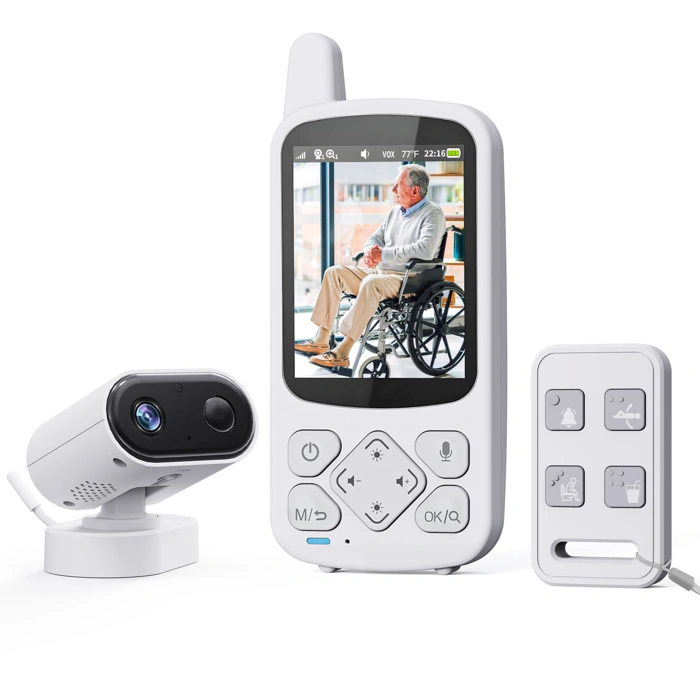
Elderly Monitor with Pan-Tilt-Zoom, 2-Way Talk, Call Button, Med Reminder, Temp & Night Vision
This elderly monitor stands out as the most feature-complete option in this guide, combining video calling with monitoring tools that help families stay connected throughout the day. With a 4.4 out of 5 rating and priced at $79.77, it delivers a broader set of capabilities than simpler call-only devices.
The dedicated call button sits front and center on the interface, letting seniors initiate two-way video conversations without navigating menus or unlocking screens. Family members connect through a companion app on their smartphones, which means setup requires someone comfortable installing and configuring mobile software - not a plug-and-play experience like the standalone portals above.
What makes this device distinct is the pan-tilt-zoom camera. Unlike fixed-angle screens, the camera can be remotely adjusted to follow movement around a room or check different areas, which adds flexibility if the senior moves between a chair, bed, or kitchen table. Night vision extends usability into evening hours without requiring additional lighting.
The medication reminder function displays scheduled alerts on the screen, and the built-in temperature sensor shows ambient room conditions - useful context for families monitoring comfort and wellness remotely. Two-way talk means either party can initiate conversation, and the call button gives seniors control over when they want to reach out.
The tradeoff is complexity. This system requires app installation, account creation, and network pairing, which may feel overwhelming if you're setting it up for a parent who struggles with multi-step technology. Once configured, daily use centers on that single call button, but the initial setup and ongoing app dependency make this better suited for families who can provide remote tech support or live nearby for occasional troubleshooting.
If your priority is a rich feature set - camera control, environmental monitoring, and medication prompts - and you or a sibling can manage the app side, this monitor offers strong value at its price point. If plug-and-forget simplicity matters more, one of the dedicated portals will be easier to maintain long-term.
- ✅ Dedicated call button for one-touch video connection
- ✅ Pan-tilt-zoom camera adjusts remotely to follow movement or change viewing angles
- ✅ Night vision enables clear video in low-light conditions
- ✅ Medication reminder alerts display on screen at scheduled times
- ✅ Built-in temperature sensor shows room conditions
- ✅ Two-way talk allows both parties to initiate conversations
- ✅ Priced at $79.77 for a broad feature set
- ⚠️ Requires family members to install and manage a companion smartphone app
- ⚠️ Setup involves app installation, account creation, and network pairing - not plug-and-play
- ⚠️ Ongoing use depends on app connectivity and family tech support availability
- ⚠️ More complex initial configuration than standalone video calling portals
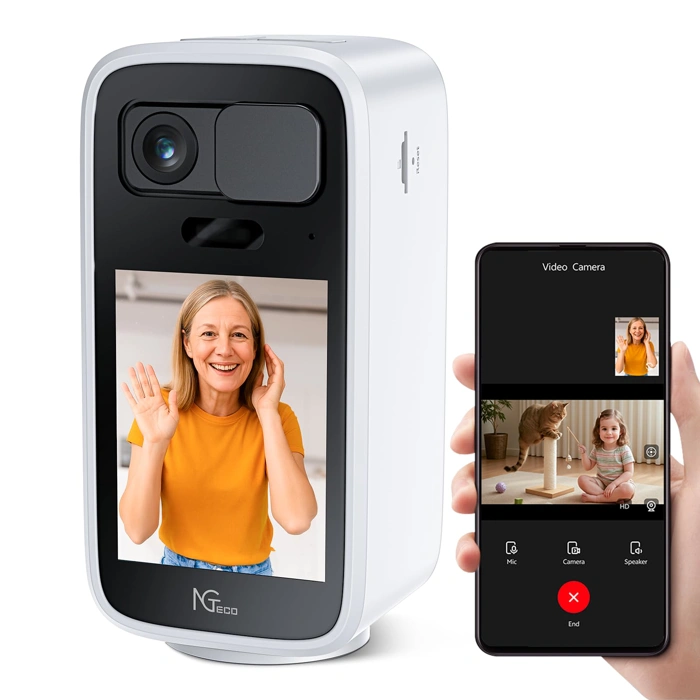
NGTeco 4MP HD Video Monitor with Two-Way Calling, 2.8" Screen & One-Touch Call
The NGTeco 4MP HD Video Monitor is the most affordable option in this guide at $49.99, earning the highest customer rating of 4.6 out of 5 stars. Its defining feature is the one-touch call button that reduces menu navigation entirely - press once to connect, making it the simplest interface for seniors who want zero learning curve.
The 2.8-inch screen is noticeably smaller than the Amazon Echo Show 8's display, but this compact size makes the device highly portable. You can move it room-to-room or pack it for travel without the bulk of larger smart displays. The 4MP HD video sensor delivers clear picture quality during calls, and two-way audio lets both parties hear each other without needing to adjust settings.
This monitor works best for seniors who prioritize call simplicity above all else. There's no app ecosystem, no voice assistant, and no multi-step setup - just power on and call. The tradeoff is functionality: you won't get the video messaging, drop-in features, or smart home integration found in Echo or Portal devices. Screen real estate is limited, so faces appear smaller during calls compared to 8-inch or larger alternatives.
If your parent struggles with touchscreens or finds voice commands confusing, the single physical button removes those barriers entirely. The smaller screen may require sitting closer for comfortable viewing, but the straightforward operation and budget-friendly price make it accessible for families testing video calling for the first time.
Screen size consideration: The CIAJIE model offers dual-band WiFi flexibility for homes with congested networks, while this NGTeco device trades connectivity options for extreme portability and the lowest price point. Choose based on whether your parent needs to carry the monitor between rooms daily or can keep it in one spot with reliable single-band WiFi.
- ✅ Lowest price at $49.99
- ✅ Highest rating at 4.6/5 stars
- ✅ One-touch call button requires zero navigation
- ✅ Compact 2.8-inch size for easy portability
- ✅ 4MP HD video quality
- ✅ Two-way calling with clear audio
- ⚠️ Small screen means faces appear smaller during calls
- ⚠️ No smart assistant or app features
- ⚠️ Limited to basic calling - no video messaging or drop-in
- ⚠️ May require sitting closer for comfortable viewing
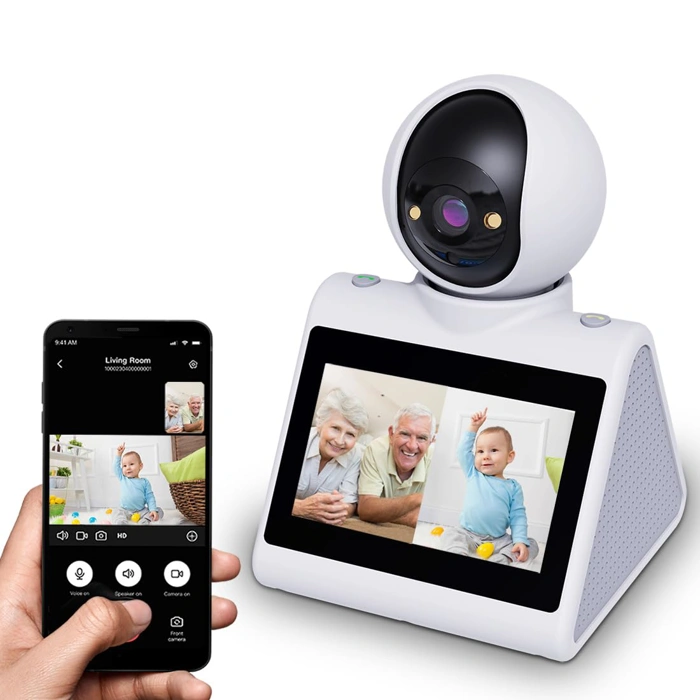
CIAJIE Dual-Band 5G/2.4G Two-Way Pan/Tilt Indoor Security Camera with Audio
The CIAJIE Dual-Band 5G/2.4G Two-Way Pan/Tilt Indoor Security Camera takes a different approach to video calling for seniors - it's primarily a security camera with two-way audio that can double as a video communication device. At $55.80, this mid-priced option appeals to families who want to check in visually while also monitoring their senior loved one's environment. The device carries a 4.5/5 rating, reflecting solid performance for users who understand its security-first design.
The standout feature is dual-band WiFi support for both 5G (5GHz) and 2.4G (2.4GHz) networks. This flexibility matters in homes where WiFi coverage is inconsistent or where interference from neighboring networks causes dropouts. The 5GHz band typically offers faster speeds and less congestion in crowded areas, while the 2.4GHz band provides better range through walls and obstacles. The pan and tilt functions let family members remotely adjust the camera angle during a call, which can be helpful for following movement or getting a better view of the room.
Setup requires a smartphone app, which immediately makes this option less suitable for seniors living alone who need to initiate calls independently. Unlike dedicated video calling monitors with physical buttons, this camera-based system expects the senior to answer incoming calls through the app or to have a family member configure it to auto-answer. For seniors who aren't comfortable with smartphones or tablets, the initial configuration and daily use will likely require ongoing help.
The two-way audio allows for conversation, but the experience differs from a traditional video call on a larger screen. The senior won't see the caller's face on the camera itself - video and audio flow through the family member's smartphone app. This one-directional visual setup works well for quick check-ins ("Did you take your medicine?" or "Are you feeling okay?") but feels less like a mutual conversation compared to devices with dedicated screens.
This device makes the most sense for families who want dual functionality: the ability to monitor a parent's home environment for safety concerns (detecting falls, checking activity patterns) and the option to communicate via two-way audio when needed. It's less appropriate as a primary video calling solution for seniors who want to see grandchildren during conversations or who need large, clear visuals of the caller's face.
Before choosing between this camera-based system and a monitor-style device, check your home's WiFi setup. If connectivity has been unreliable or if the router supports both 2.4GHz and 5GHz bands, the CIAJIE's dual-band capability adds meaningful flexibility. However, if your priority is simple, senior-initiated video calls with minimal tech barriers, a dedicated video calling monitor with one-touch buttons will deliver a more straightforward experience for daily use.
- ✅ Dual-band WiFi (5GHz and 2.4GHz) for better connectivity in challenging network environments
- ✅ Pan and tilt functions allow remote angle adjustment during calls
- ✅ Mid-price point at $55.80 with dual security and communication functionality
- ✅ Two-way audio enables conversation without requiring senior to operate a screen
- ⚠️ Requires smartphone app for setup and operation, not senior-friendly for independent use
- ⚠️ Senior cannot see the caller's face during conversations, only one-way video from camera to app
- ⚠️ Security camera design prioritizes monitoring over mutual video calling experience
- ⚠️ Not suitable for seniors who want to initiate calls themselves or see grandchildren on screen
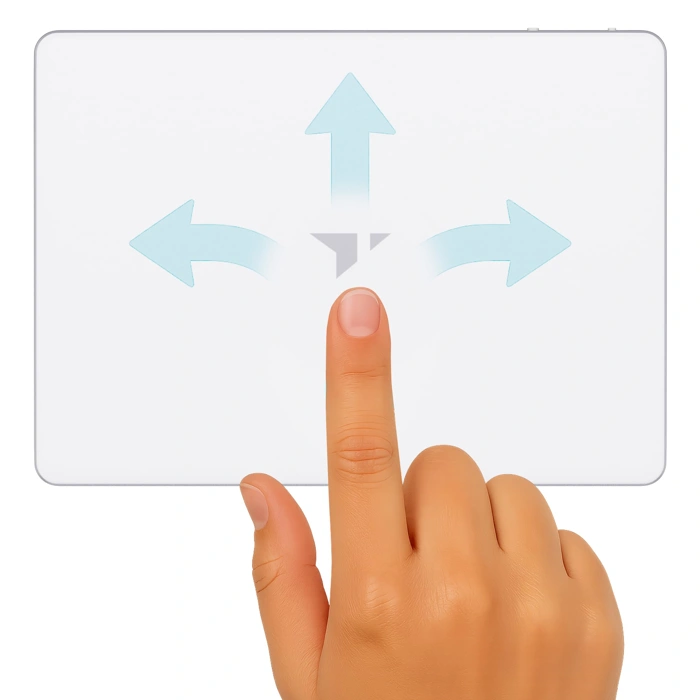
Turonic TP1 Wireless Bluetooth Touchpad
The Turonic TP1 Wireless Bluetooth Touchpad is not a video calling device - it's an accessory that pairs with an existing tablet or computer. Unlike the dedicated monitors reviewed above, this touchpad requires you to already have video calling software installed on a separate device.
This wireless touchpad connects via Bluetooth and is priced at EUR51.73. It carries a 4.2 out of 5 rating, but understanding when this approach makes sense is critical before considering it for a senior user.
A touchpad accessory only works if the senior is already comfortable navigating a tablet or computer interface. They'll need to open the video calling app, find the contact, and initiate the call - tasks that require multiple steps and screen familiarity. If your goal is simplicity for someone who avoids technology, adding a separate input device to an already complex workflow usually creates more confusion, not less.
This hybrid approach might make sense in narrow scenarios: a senior who already uses a tablet daily for email or web browsing, finds the touchscreen tiring, and wants a physical touchpad for easier navigation. But for video calling specifically, it adds a layer of complexity that contradicts the one-touch simplicity offered by dedicated devices like the Echo Show or Portal.
The wireless Bluetooth connection means one more pairing step during setup and potential connectivity troubleshooting if the connection drops. For caregivers managing remote setup, this introduces variables that dedicated monitors eliminate entirely.
If the senior in your life doesn't already have an established tablet routine and comfort level with apps, skip this accessory route entirely and choose a dedicated video calling monitor with a built-in touchscreen and one-touch contacts. The added cost of a touchpad plus the tablet or computer it requires will likely exceed the price of an all-in-one solution - while delivering a less reliable, more frustrating experience.
- ✅ Wireless Bluetooth connectivity eliminates cable clutter
- ✅ May suit seniors already comfortable with tablet navigation
- ✅ Priced at EUR51.73 as an accessory option
- ⚠️ Requires separate tablet or computer with video calling software installed
- ⚠️ Adds complexity and multiple steps instead of one-touch simplicity
- ⚠️ Bluetooth pairing and connectivity can introduce troubleshooting needs
- ⚠️ Not a standalone solution for seniors who avoid technology
Key Features to Consider Before You Buy
- Call button size and placement - can your parent reach and press it reliably without leaning forward or searching the screen?
- Screen size and brightness - will they see faces clearly in their usual room lighting, including afternoon glare or evening lamp light?
- WiFi setup burden - who will handle initial connection, and can you troubleshoot remotely if the network drops?
- Family app requirements - what do you need to install on your phone to connect, and does it work on both iPhone and Android?
- Audio clarity - can both sides hear without volume cranked uncomfortably high or echoing in a quiet room?
- Positioning flexibility - does the device sit stable on a table, or does it require wall mounting and power outlet placement?