We may earn a commission when you buy through links on this page, at no extra cost to you. How this works.
Setting up an Amazon Echo Show for an elderly parent means balancing two goals: making video calls simple enough to use without help, and respecting their independence by avoiding unnecessary complexity. The device can handle dozens of features, but most create friction rather than connection - your job is to configure the essentials and leave the rest untouched.
This guide walks through a deliberate setup sequence: creating or linking the Amazon account, adding trusted contacts for one-tap calling, adjusting display and volume settings for visibility and comfort, enabling the voice commands that matter, and troubleshooting the handful of issues that actually occur in daily use. Each step includes what to configure immediately, what to defer until your parent asks, and what to skip entirely to keep the interface uncluttered.
The approach prioritizes reliability over features. You'll focus on the Drop In function for check-ins, large text for readability, and a short list of contacts your parent can reach by saying a first name. Everything else - skills, routines, smart home links - stays disabled unless there's a specific, recurring need. By the end of this setup, your parent will have a device that connects them to family without requiring them to navigate menus, remember commands, or troubleshoot settings on their own.
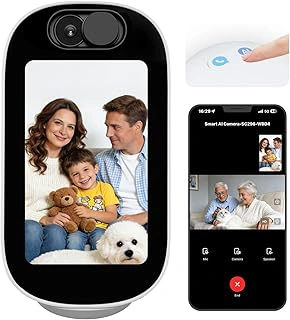
4MP Indoor Security Camera Baby Monitor with 4-inch Screen and Two-Way Talk
The 4MP Indoor Security Camera Baby Monitor with 4-inch Screen and Two-Way Talk offers a simpler alternative to Echo Show when your parent primarily needs visual check-ins without voice command complexity. This device pairs a stationary camera with a 4-inch handheld screen, allowing two-way video and audio conversations without requiring an Amazon account, Wi-Fi network configuration, or learning voice prompts.
The camera stays in one room while the portable screen can move anywhere within wireless range, making it straightforward for a parent who prefers pressing a button to start a video call rather than speaking to a device. The two-way talk function supports basic conversations, and the 4MP resolution provides clear visuals for checking in. However, this monitor lacks the hands-free calling that makes Echo Show convenient when your parent's hands are full, and it does not integrate with smart home devices, contact syncing, or video calling services like Zoom or Skype.
This option fits best when your parent is comfortable holding a screen and pressing buttons, when you want to avoid teaching new technology routines, or when internet connectivity is unreliable. If your parent benefits from voice-activated calling, access to a full contact list, or the ability to answer calls hands-free from across the room, Echo Show remains the more capable choice. Compare the feature lists side-by-side to match the device to your parent's daily habits and comfort with technology.
- ✅ No voice commands or Amazon account required
- ✅ Portable 4-inch screen with two-way talk
- ✅ Simple button-press operation
- ✅ Works without complex Wi-Fi setup
- ⚠️ No hands-free calling capability
- ⚠️ Lacks smart home integration and contact syncing
- ⚠️ Limited to one camera location
- ⚠️ Does not support video calling services
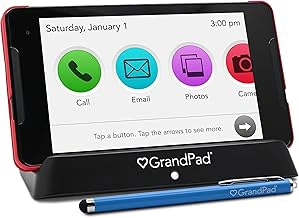
GrandPad Tablet and Phone for Seniors
The GrandPad Tablet and Phone for Seniors offers a purpose-built alternative to the Echo Show, designed specifically for older adults with limited tech experience. Unlike general-purpose tablets, the GrandPad features a simplified interface with large icons, a managed service model, and built-in family support tools that reduce the learning curve for video calls and other communication.
The device ships preconfigured with essential apps and settings, removing the complexity of account setup and app management that can frustrate less tech-savvy users. Family members can remotely add contacts, upload photos, and manage settings through a companion portal, which means your parent won't need to navigate menus or remember passwords to stay connected. Video calling works through a single tap on a contact's photo, eliminating the need to learn voice commands or navigate screens.
The primary tradeoff is cost. At $399.99 plus a required monthly subscription (typically multiple depending on plan), the GrandPad represents a significantly higher investment than the Echo Show's one-time purchase price. The subscription covers cellular data, device management, and ongoing support, but this recurring expense may not fit every budget. For families who prioritize simplicity and hands-off setup over flexibility, the GrandPad's curated experience can reduce troubleshooting calls and technical frustration. However, if your parent is comfortable with basic voice commands or you're available to help with initial Echo Show setup, the subscription model may feel like paying for features you don't need.
The GrandPad lacks the Echo Show's smart home integration, music streaming variety, and voice assistant capabilities. It's a dedicated communication and entertainment device rather than a multi-function smart display. Consider this option if your parent struggles with touchscreen navigation, finds voice commands confusing, or if family members want remote control over device settings without walking through troubleshooting steps over the phone.
- ✅ Simplified interface with large icons designed for seniors
- ✅ Preconfigured setup eliminates account and app management
- ✅ Family portal allows remote contact and settings management
- ✅ One-tap video calling without voice commands
- ✅ Managed service model reduces technical support needs
- ⚠️ Requires monthly subscription on top of $399.99 device cost
- ⚠️ Limited functionality compared to Echo Show smart features
- ⚠️ No smart home integration or voice assistant
- ⚠️ Higher total cost of ownership over time
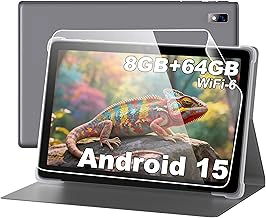
BYYBUO 10.1-inch Android 15 Tablet with 8GB RAM, 64GB ROM, HD Touchscreen
The BYYBUO 10.1-inch Android 15 tablet offers a very low-cost entry point at $63.98, making it an option for families on a tight budget who are willing to invest setup time. Unlike the Echo Show devices, this general-purpose tablet requires you to manually install and configure video calling apps like Google Duo, Zoom, or Skype, then walk your parent through using them. The 8GB RAM and 64GB storage provide adequate performance for basic video calls, and the 10.1-inch HD touchscreen is large enough for comfortable viewing. However, there's no voice-first interface, no Drop In feature, and no simplified contact system designed for seniors. You'll need to set up each app, create accounts, add contacts, and teach your parent to navigate the Android interface - a significantly higher barrier than Echo Show's "Alexa, call [name]" simplicity. The 4.3/5 rating suggests reasonable build quality for the price, but expect to provide ongoing remote support. This tablet makes sense if your parent is already comfortable with smartphones, you're nearby to help troubleshoot, or you need the flexibility to install multiple communication apps and other software. For families prioritizing ease of use and minimal ongoing support, the purpose-built Echo Show remains the simpler choice despite the higher upfront cost.
- ✅ Very low price point at $63.98
- ✅ 10.1-inch HD touchscreen for comfortable viewing
- ✅ 8GB RAM and 64GB storage handle video calling apps
- ✅ Flexibility to install multiple communication platforms
- ⚠️ Requires manual app installation and configuration
- ⚠️ No voice-first interface or simplified senior-friendly controls
- ⚠️ No Drop In or automatic answer features
- ⚠️ Demands higher ongoing family tech support
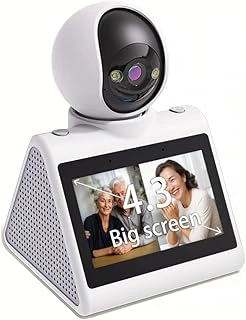
KEENLUK Home Security Camera with 4.3" Screen, 1080P HD, Two-Way Video Call & Motion Detection
The KEENLUK Home Security Camera offers two-way video calls through a 4.3-inch screen at a significantly lower price point than an Echo Show, currently listed at $58.80. The device delivers 1080P HD video quality and includes motion detection alerts, making it suitable for scheduled check-ins and basic monitoring scenarios where you want to see into a parent's home and communicate briefly.
Unlike the Echo Show, this camera-focused device lacks voice assistant integration, smart home control, and the broader ecosystem features that make daily interaction intuitive for elderly users. The two-way video call function requires opening an app on your smartphone to initiate contact - your parent cannot call you by voice command or touch a contact name on the screen. This means the device works best when you initiate calls on a predictable schedule, or when motion detection prompts you to check in, rather than for spontaneous parent-initiated conversations.
The 4.3-inch screen is smaller and offers less visual real estate for seeing faces clearly compared to Echo Show models with 8- or 10-inch displays. Setup involves installing the camera in a fixed location with a view of the room, connecting it to Wi-Fi, and pairing it with the companion mobile app. The motion detection feature can notify you of activity, which may provide reassurance but also generates alerts that require management to avoid notification fatigue.
This camera suits families who primarily want to initiate video check-ins and appreciate the motion alert capability, but it is not a replacement for the Echo Show's interactive, voice-driven calling experience. If your parent needs the ability to reach you easily by saying a command or tapping a large contact card, the Echo Show remains the more appropriate choice despite the higher cost.
- ✅ Low-cost option at $58.80 for two-way video capability
- ✅ 1080P HD video quality
- ✅ Motion detection alerts for activity monitoring
- ⚠️ No voice assistant or smart home integration
- ⚠️ Parent cannot initiate calls independently by voice or simple touch
- ⚠️ Smaller 4.3-inch screen limits visibility
- ⚠️ Requires app-based call initiation by family member
Who This Setup Guide Is For
This guide is designed for adult children, family caregivers, or tech-savvy friends who are setting up an Amazon Echo Show for an older parent or relative who may not be comfortable navigating menus, remembering passwords, or troubleshooting connectivity issues on their own. It assumes the person receiving the device wants a simple way to stay connected through video calls but may face challenges like reduced vision, arthritis that makes touchscreens difficult, or little experience with smart devices.
An Echo Show works well when your parent lives independently, has reliable Wi-Fi, and would benefit from hands-free voice control for calling family members who also use Alexa devices or the Alexa app. It's a good fit if you want a device that can also display photos, show the weather, or play music without extra setup. However, if your parent struggles with voice commands, prefers a simpler interface with large physical buttons, or needs a device that works without internet, a dedicated senior tablet with pre-loaded contacts or a basic video monitor may be a better choice. The Echo Show requires an active Amazon account, stable internet, and some willingness to learn a few voice phrases, so consider those factors before committing to this setup.
What Matters Most in the Initial Setup
The first five minutes of setup determine whether your parent will use the Echo Show daily or leave it unplugged in a drawer. Focus on Wi-Fi stability first: choose the 2.4 GHz network if your router broadcasts both bands, because it penetrates walls better and maintains a stronger connection in bedrooms or living rooms farther from the router. Test the connection by asking Alexa to play a song before moving forward - if audio stutters, reposition the device or add a mesh network node.
Account security and contact permissions deserve equal attention. You face a tradeoff: linking the Echo Show to your parent's own Amazon account gives them independence to shop or manage settings, but linking it to your account lets you control updates, approve contacts, and troubleshoot remotely through the Alexa app on your phone. For parents with memory concerns or limited tech comfort, using your account with Drop In enabled for specific family members often works better than teaching password recovery or two-factor authentication.
Display brightness and volume levels need manual adjustment during setup, not later over the phone. Set brightness to about 60 percent in a well-lit room, then ask your parent to read the time from across the room - if they squint, raise it to 75 percent. Volume should be loud enough to hear Alexa's responses from the kitchen or bedroom doorway, typically around 5 or 6 on the 10-point scale. Write these settings on a sticky note near the device so a caregiver can restore them if your parent accidentally changes them with a voice command.
Contact permissions require you to enable Drop In for each trusted family member individually through the Alexa app's Communicate settings. This allows those contacts to connect instantly without your parent needing to answer, which matters during emergencies or when mobility makes tapping the screen difficult. The tradeoff is reduced privacy - your parent cannot decline a Drop In call - so limit this feature to two or three people who understand when to use it and when to send a regular call request instead.
Step 1: Unboxing and Physical Placement
Before plugging anything in, choose a stable surface near an outlet where your parent spends most of their time - a kitchen counter, bedside table, or living room sideboard work well. The Echo Show's built-in stand tilts the screen upward, so place it at or slightly below eye level when your parent is seated to minimize neck strain during video calls. Avoid spots directly opposite windows or bright lamps, as glare can wash out the display and make facial recognition harder for both the camera and your parent.
Check that the power cable can reach the outlet without stretching across walkways. If the cord must cross a path, secure it along the baseboard with adhesive cable clips or run it behind furniture to prevent trip hazards. Leave at least a few inches of clearance behind the device for ventilation and so the power adapter sits flat rather than pulling on the port.
Position the Echo Show within comfortable speaking distance - roughly three to eight feet - so the microphone array picks up voice commands clearly without your parent needing to shout. If the room has hard floors or bare walls that create echo, placing the device on a cloth placemat or near soft furnishings can reduce audio bounce and improve call clarity.
Once placed, connect the included power adapter to the port on the back and plug it into the wall outlet. The screen will light up and begin the setup sequence automatically. Keep the quick start guide nearby in case you need to reference the button locations; the volume controls and microphone-mute button sit along the top edge, and the camera shutter switch is usually on the right side of the frame.
Step 2: Connecting to Wi-Fi and Creating or Linking an Amazon Account
Once the Echo Show powers on, it will prompt you to select your Wi-Fi network from a list of available networks. Tap your network name on the touchscreen, then enter the password using the on-screen keyboard. The device will confirm the connection before moving to account setup. You have three options: use your parent's existing Amazon account if they have one, create a new Amazon account in their name, or link the device to your own account. Using their own account gives them independence and keeps their contacts, preferences, and history separate, but means they could make purchases unless you disable voice purchasing in settings later. Linking to your account makes management easier and prevents unexpected purchases, but mixes your contacts and activity with theirs. Creating a new account for them offers a clean start with full control over permissions, though it requires setting up a new email address if they don't have one. Consider privacy and autonomy: most families find that a dedicated account in the parent's name, with voice purchasing turned off, offers the best balance of independence and safety.
Step 3: Adjusting Display and Sound Settings for Accessibility
Step 3: Adjusting Display and Sound Settings for Accessibility supports the article by focusing on How to set up an Amazon Echo Show for an elderly parent for easy video calls and keeping the advice grounded in practical tradeoffs. Detail how to increase text size, adjust screen brightness, enable adaptive brightness, set volume defaults, and turn on captions. Explain how to disable or simplify notifications that may confuse new users.
Step 4: Adding Contacts and Enabling Drop In or Calling Features
Adding contacts and enabling Drop In are essential steps to make video calls reliable and easy for your parent. Start in the Alexa app by tapping the Communicate icon at the bottom (a speech bubble), then tap the contact icon in the top-right corner and select Add Contact. Enter the person's name and phone number or email address - whichever they use for their Amazon account. If they're already an Alexa contact, they'll appear in your list automatically once both devices are linked to the same household or have permissions enabled.
The difference between Drop In and standard calling is important. Drop In allows you to connect instantly to the Echo Show without the recipient needing to answer - the video feed opens automatically after a short chime. This is helpful if your parent has trouble tapping the screen or hearing the ring, but it does require explicit permission from both sides. To enable Drop In, open the Alexa app, go to Devices, select your parent's Echo Show, tap Communications, and toggle on Drop In. You can restrict Drop In to household contacts only for privacy, or allow it for anyone in their contact list.
Standard calling requires your parent to tap Accept on the screen when a call comes in, which gives them more control but may be harder if they have limited mobility or confusion around new prompts. For most setups, Drop In within the family is the smoother choice. Keep the contact list small - add only immediate family members or caregivers to start. A shorter list reduces the chance your parent will accidentally call the wrong person or feel overwhelmed when scrolling. You can always add more contacts later as they become comfortable with the device.
Test each contact after adding them by initiating a call from your own device to confirm the connection works smoothly and your parent can see and hear you clearly.
Step 5: Teaching Simple Voice Commands and Practice Calls
Step 5: Teaching Simple Voice Commands and Practice Calls supports the article by focusing on How to set up an Amazon Echo Show for an elderly parent for easy video calls and keeping the advice grounded in practical tradeoffs. List the most useful voice commands for calling (e.g., 'Alexa, call [name]'). Recommend conducting a practice call together, troubleshooting audio/video issues, and confirming the parent can answer and end calls confidently.
Common Mistakes to Avoid During Setup
Setting up an Echo Show becomes frustrating when common missteps create confusion for elderly users. One frequent mistake is skipping practice calls after setup - without testing Drop In and regular video calls together, you won't know if permissions are correctly configured or if the microphone and camera work as expected. Another error is enabling too many Alexa skills or features at once; flooding the device with shopping suggestions, news briefings, and smart home controls overwhelms someone who simply wants to answer video calls from family. Device placement matters more than many caregivers realize - positioning the Echo Show on a wobbly side table, in direct sunlight that washes out the screen, or too far from the router leads to poor video quality and dropped calls that erode confidence in the technology.
Forgetting to test Drop In permissions is particularly problematic because this feature requires explicit approval on both devices, and many families assume it works automatically after pairing contacts. If you don't verify that Drop In is enabled for the right people and disabled for everyone else, your parent may either miss calls or receive unexpected video connections that feel intrusive. Finally, leaving the contact list cluttered with every Amazon account holder, old coworkers, or distant acquaintances makes it harder for seniors to find the two or three people they actually call. A simplified contact list with large, clear profile photos and first names only reduces decision fatigue and prevents accidental calls to the wrong person. Each of these mistakes adds friction that turns a helpful device into a source of anxiety, so take the time to configure thoughtfully, test thoroughly, and keep the interface as simple as the core task requires.
When an Echo Show May Not Be the Best Fit
An Echo Show can simplify video calling for many older adults, but it isn't the right choice for every situation. If your parent has very limited experience with any form of technology - no smartphone, no tablet, no voice assistant - the learning curve for voice commands and touch navigation may feel overwhelming, even with patient setup help. Some people also resist speaking commands aloud or find the device feels intrusive in a living space, preferring a dedicated single-purpose screen they can control entirely by touch.
Households without reliable Wi-Fi or those prone to internet outages may struggle with an Echo Show, since it depends entirely on a stable connection for video calls. If your parent lives in a rural area with spotty broadband or frequent power interruptions, a device that offers cellular backup or works over a landline may provide more consistent communication. Additionally, if physical dexterity or vision challenges make touch interaction difficult and voice commands remain confusing after practice, a simpler fixed-button interface may prove easier to use day to day.
Consider whether your parent would benefit from a device designed exclusively for video calling, with no secondary features to navigate, or whether they already use a tablet and would prefer expanding that familiar tool instead of introducing a new device category. The Echo Show works best when the person using it is comfortable with voice interaction or willing to learn a small set of repeatable commands, and when reliable home internet is in place.
Final Takeaway
Successful Echo Show setup for an elderly parent comes down to three priorities: keeping the interface simple, practicing together before you leave, and testing every feature you enable. The device works best when it removes friction from staying in touch, not when it introduces new tasks or confusion. Before you consider the setup complete, make at least one test call from your own device, confirm your parent can answer using voice or touch, and verify that the display brightness and text size feel comfortable in their actual lighting conditions.
Plan to check in during the first week of use - not to troubleshoot problems, but to see which features your parent actually uses and which ones add clutter. If they never ask for the weather, remove that card from the home screen. If they struggle with voice commands, simplify the contact list and rely on Drop In for incoming calls. The goal is connection without creating new dependency, so resist the urge to enable every feature at once.
As your parent gains confidence, you can gradually introduce one new capability at a time, whether that's setting reminders, playing music, or checking the calendar. Revisit the setup checklist after the first week and adjust settings based on real-world experience. The Echo Show becomes most valuable when it fades into the background and simply works, letting your parent focus on the conversation instead of the technology.
Setup Completion Checklist
- Echo Show powered on and connected to Wi-Fi
- Amazon account linked and verified
- Display brightness and text size adjusted for visibility
- Volume set to comfortable level with captions enabled if needed
- At least two trusted contacts added and permissions granted
- Practice video call completed successfully